Overview
According to New Relic, Java 17 officially surpassed Java 11 in 2024 as the most-used Java version by professional developers, with 35% of applications reported to now be using it. And let’s face it – lots of us who have been on Java 11 or Java 8 would love to take advantage of the new language features and runtime enhancements, as well as garbage collection choices, offered in JDK 17.
However, many developers are challenged with upgrading a complex system of custom libraries and applications that are running on Java 11 (or earlier). If you’re one of those developers, then this article is for you!
We’ll create a simple, Gradle-based “Hello World” Java project, and we’ll see how to upgrade this Gradle project to build and run in Java 17. We’ll also cover some additional considerations and common misconceptions for the endeavor.
Prerequisites
You probably already have JDK 11 or JDK 8 installed, but for this tutorial, you’ll need to install JDK 17 or later on your system so that you can build and run a project using JDK 17. Oracle JDK 17 or any OpenJDK 17 distribution will work fine for this purpose – my personal favorite is Amazon Corretto, but there are several others.
For best results, you’ll also need Gradle (or Gradle wrapper) version 7.3 or later. Earlier Gradle/wrapper versions may encounter errors building with JDK 17 or later and should be avoided for this reason.
For the purpose of this tutorial, we’ll stick with the Groovy DSL for Gradle, but the same principles can be applied using the Kotlin DSL.
Sample “Hello World” Project
Suppose we have a Gradle project with a simple build.gradle file:
plugins {
    id 'java'
}

group = 'blog.coherentjava'
version = '1.0-SNAPSHOT'

repositories {
    mavenCentral()
}
Pretty straightforward, right? Since our project is a simple “Hello World” app, we don’t need any external dependencies – just Java, which is added via the java plugin!
Now, let’s create the HelloWorld.java file under src/main/java:
public class HelloWorld {

    public static void main(String[] args) {
        System.out.println("Hello, World!");
    }
}
Updating the build.gradle File for Java 17
For our simple example, we only need to add the java plugin section, telling it to use the toolchain for Java 17:
java {
    toolchain {
        languageVersion = JavaLanguageVersion.of(17)
    }
}
This tells Gradle that we want to build the project using JDK 17, with source code compatible with Java 17 and bytecode compiled to run on JRE 17.
This means that, even if we later decide to run Gradle with a newer version of Java, like JDK 21, this build will always be performed using JDK 17 – going so far as to automatically download the Java compiler and related tools for Java 17 if it can’t find them on our system, thereby future-proofing our Java 17 Gradle build.
Updating the Java Version in IntelliJ IDEA
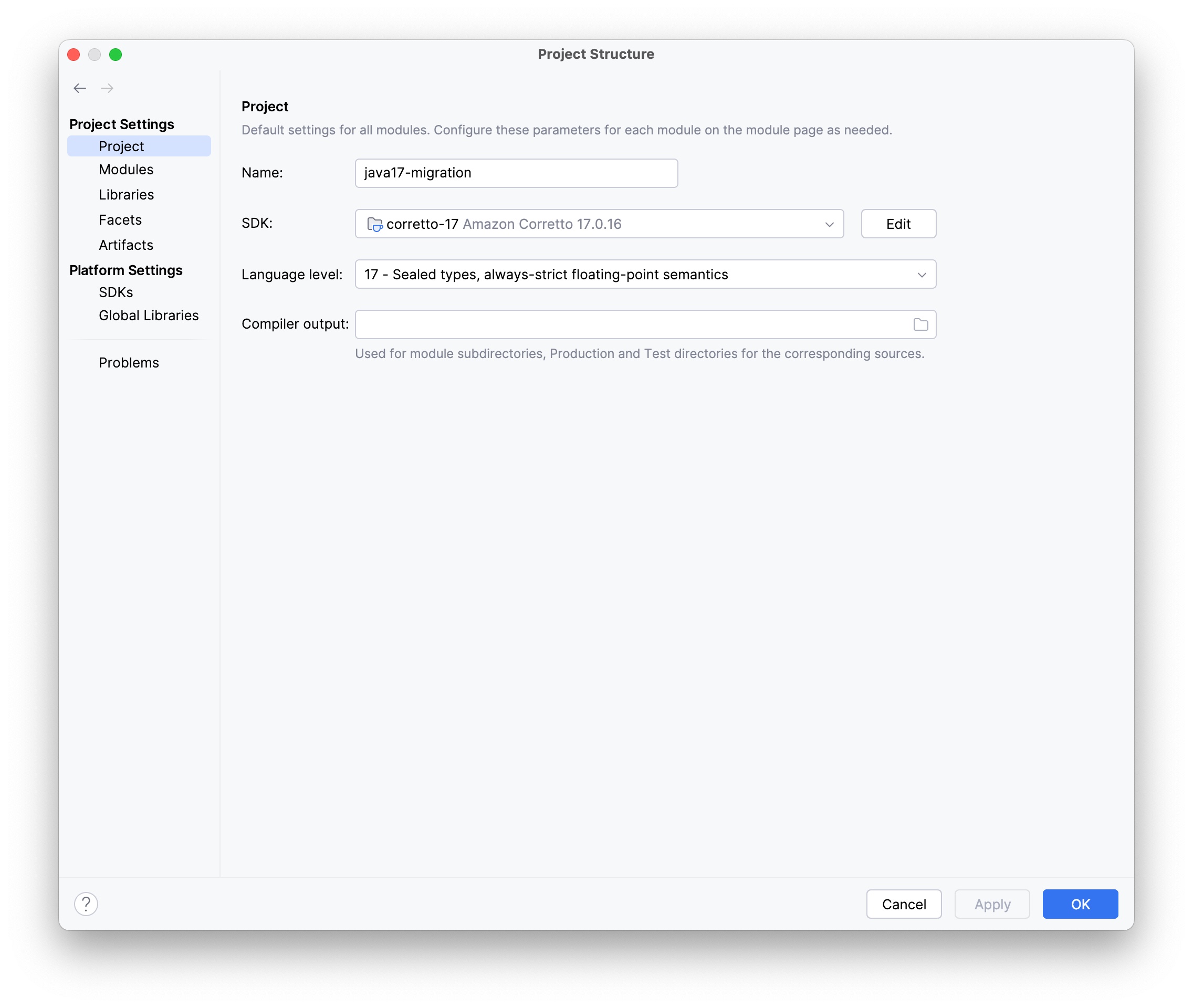
If you’re using IntelliJ IDEA, you’ll also need to make sure to configure the project to use JDK 17 and set the language level to Java 17:
Common Pitfalls and Considerations
If you’re working with an IDE such as IntelliJ IDEA, Eclipse, Netbeans, or Visual Studio Code, you may have been tempted to skip ahead and simply configure your IDE project to use JDK 17 and be compatible with Java 17 language features. But make no mistake – this gets you only halfway there and “Livin’ on a Prayer” (cue Bon Jovi).
Or maybe you’re working with an established codebase and encounter settings for sourceCompatibility and/or targetCompatibility instead of the toolchain configuration in the build.gradle file:
java {
    sourceCompatibility = 11
    targetCompatibility = 11
}
And you may be tempted to just change the version numbers in this section:
java {
    sourceCompatibility = 17
    targetCompatibility = 17
}
Now, this was probably done with good intentions, but you should know that these settings are intended only to allow you to maintain backward compatibility with the specified older Java version – for example, if you intend to the code to be able to run on JDK 11 even though you only have JDK 17 on your development system and, therefore, need to restrict the source code syntax to be Java 11 compatible and the bytecode to be executable on Java 11.
However, these settings only establish the language and runtime compatibility versions of your project and do not guarantee that your Gradle build uses JDK 17. In fact, according to Gradle documentation, you may encounter issues with this alone and should only use this approach if you need backward compatibility but can’t use toolchains. So, if you see this, avoid the Bon Jovi syndrome and change this to use the toolchain construct.
Additional Notes
By default, when you build a Java project, Gradle will target the same JDK version that Gradle itself is running with. However, as shown above, there are some situations you may encounter when upgrading an established project that will require additional changes.
The toolchain also allows you to designate a specific JDK vendor and implementation:
java {
    toolchain {
        languageVersion = JavaLanguageVersion.of(17)
        vendor = JvmVendorSpec.AMAZON
        implementation = JvmImplementation.VENDOR_SPECIFIC
    }
}
And for some advanced toolchain specifications, you may need to also specify a custom toolchain resolver, such as the Foojay Toolchains Plugin:
plugins {
    id "java"
    id "org.gradle.toolchains.foojay-resolver-convention" version "0.4.0"
}
The use and configuration of custom toolchain vendors, implementations, and resolvers is beyond the scope of this article.
Next Steps
Now that we’ve seen how simple it is to upgrade our Gradle projects to build and run using JDK 17, we can take advantage of the new language features and garbage collection improvements the platform has to offer.
See the GitHub repository for all the sample files in this article.
 Coherent Java